Adding a Google Sheet integration
Upload cost inputs and other configurations in a Google Sheet to Pulse
Adding a Google Sheet integration
Upload cost inputs and other configurations in a Google Sheet to Pulse
Setting up the Integration
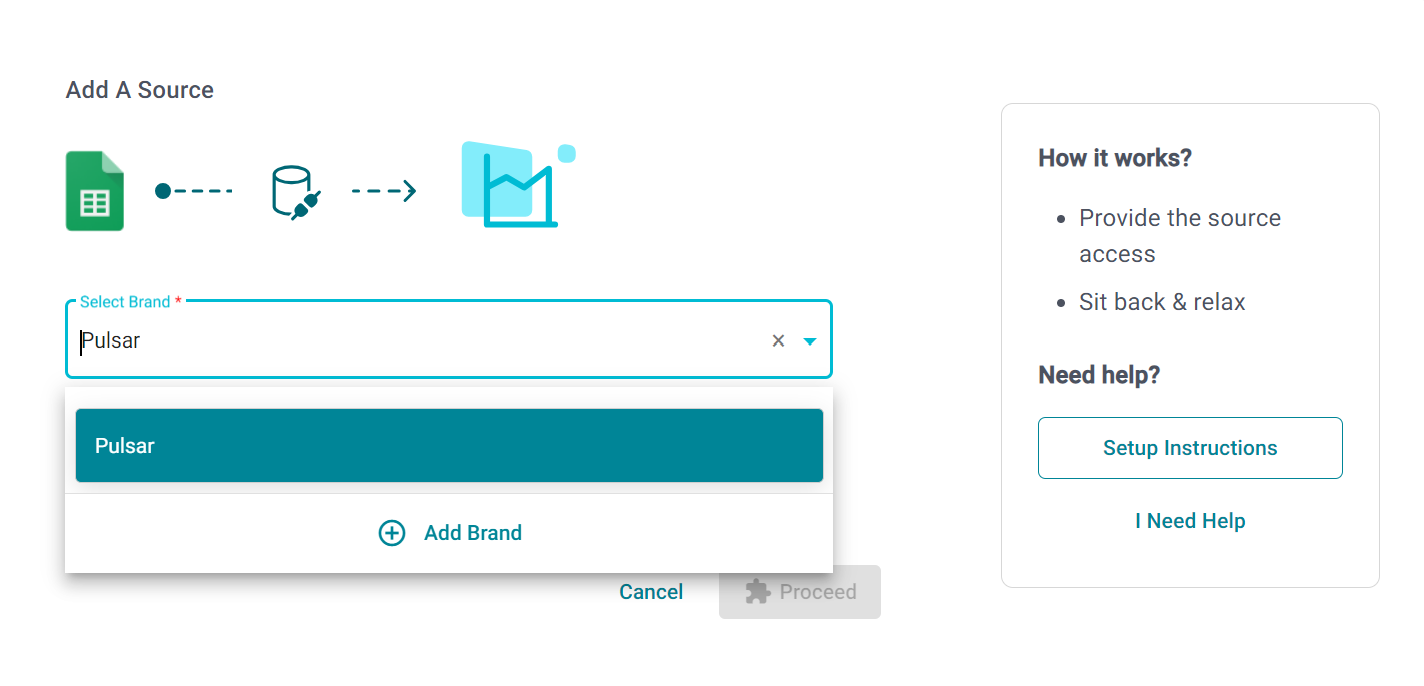
1. Select from an existing brand or add a new one by clicking on “Add Brand”.
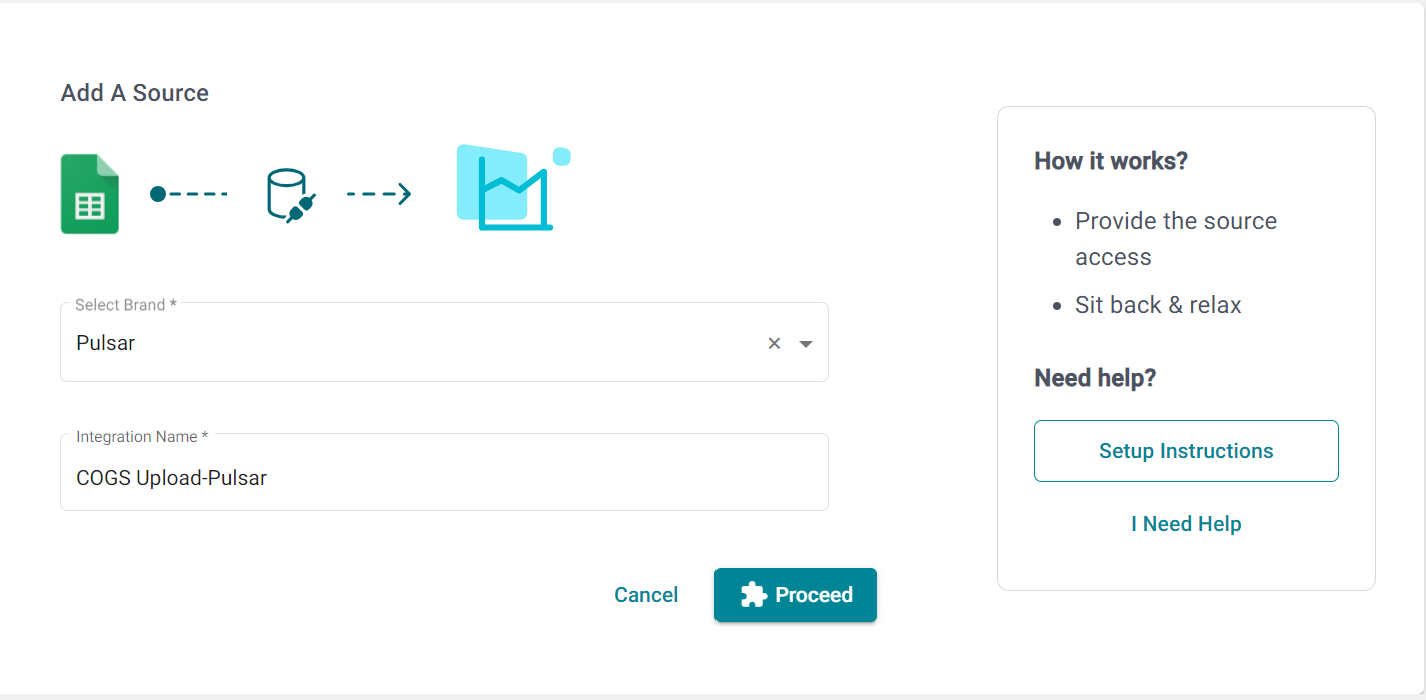
2. Provide a name for the integration, this will help you identify it later. Then Click on Proceed.
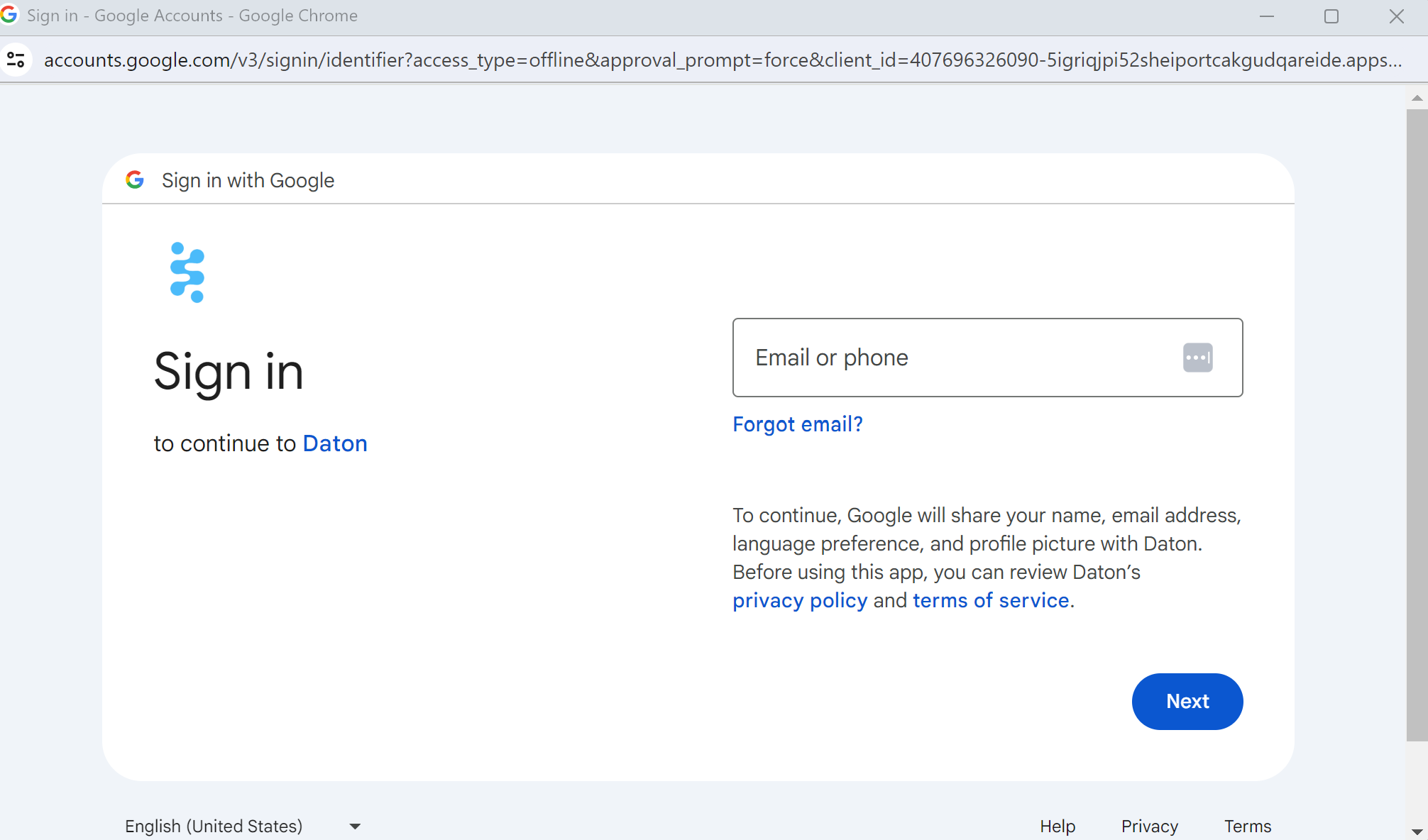
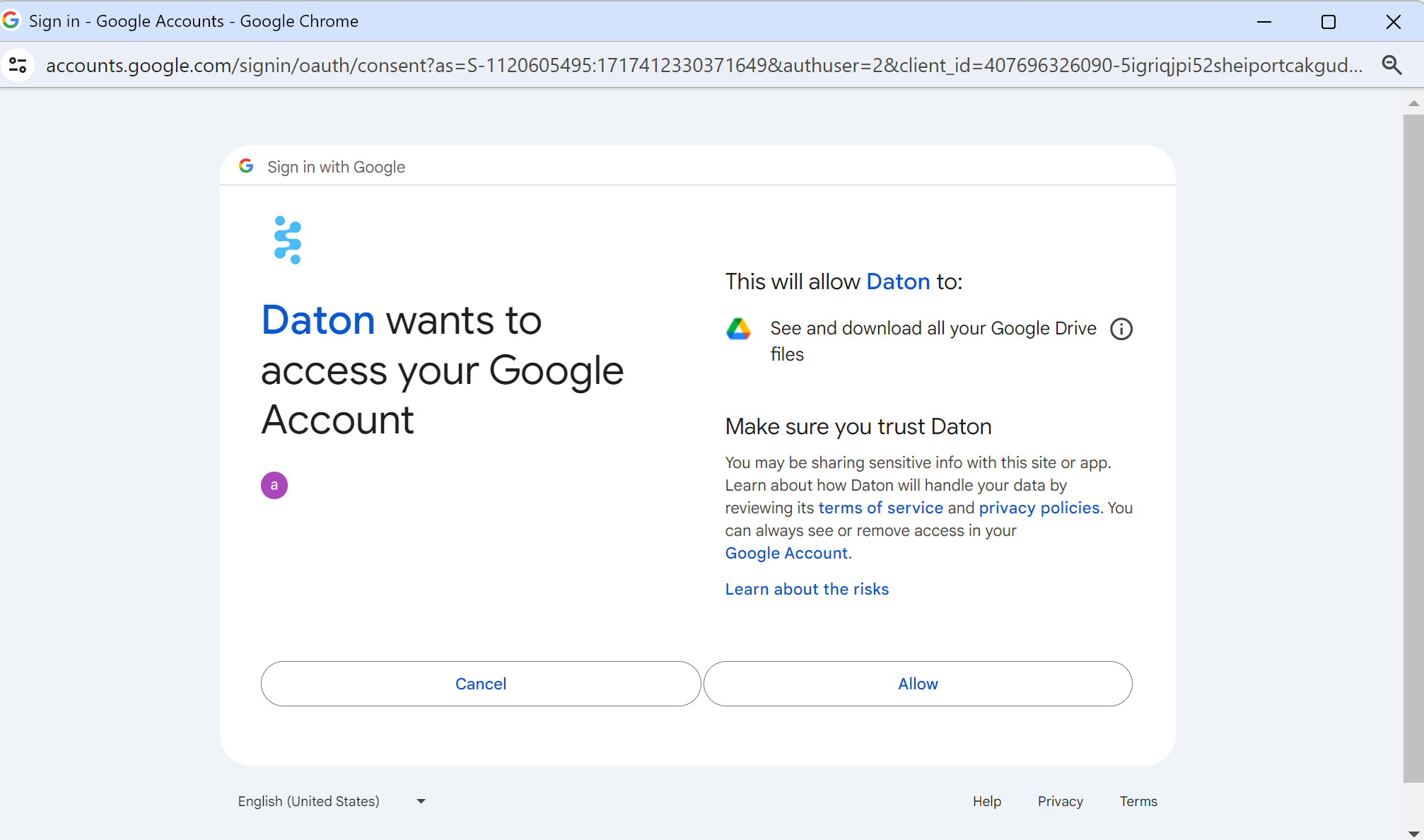
3. Log in to your google account – Use the Google Account that owns the spreadsheet or has edit access to it.
4. Give Daton the permission to access your google account.
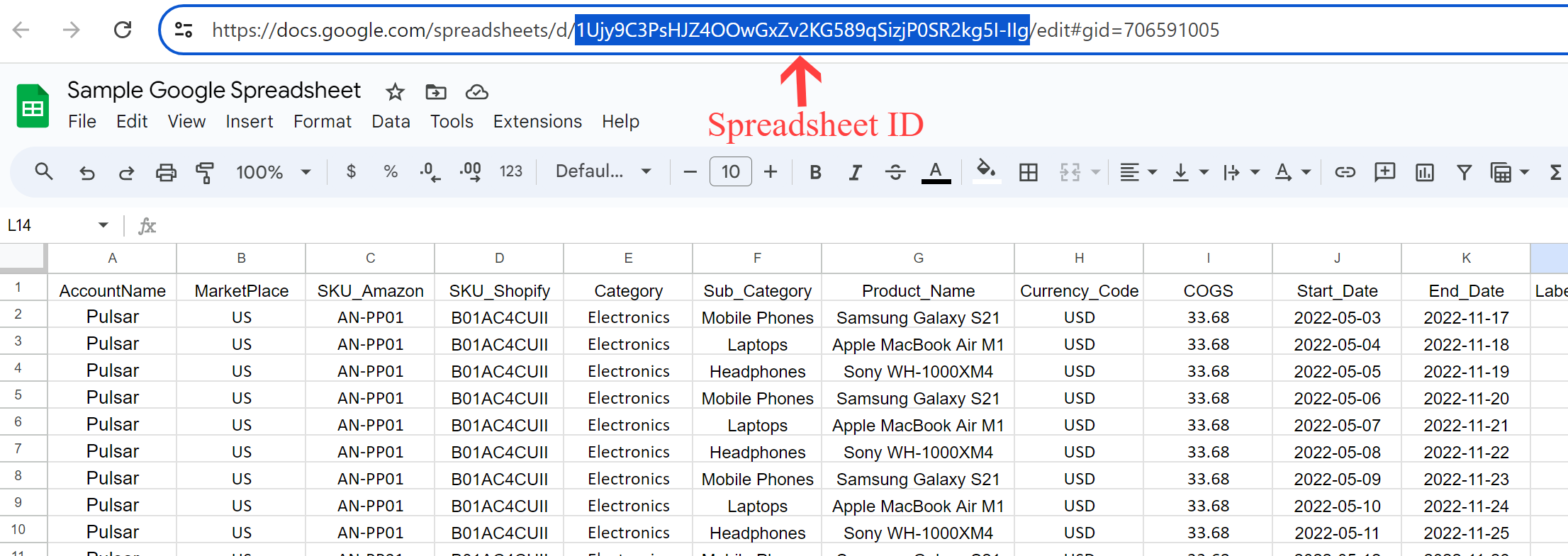
5. You will be asked for a spreadsheet ID, paste the spreadsheet ID.
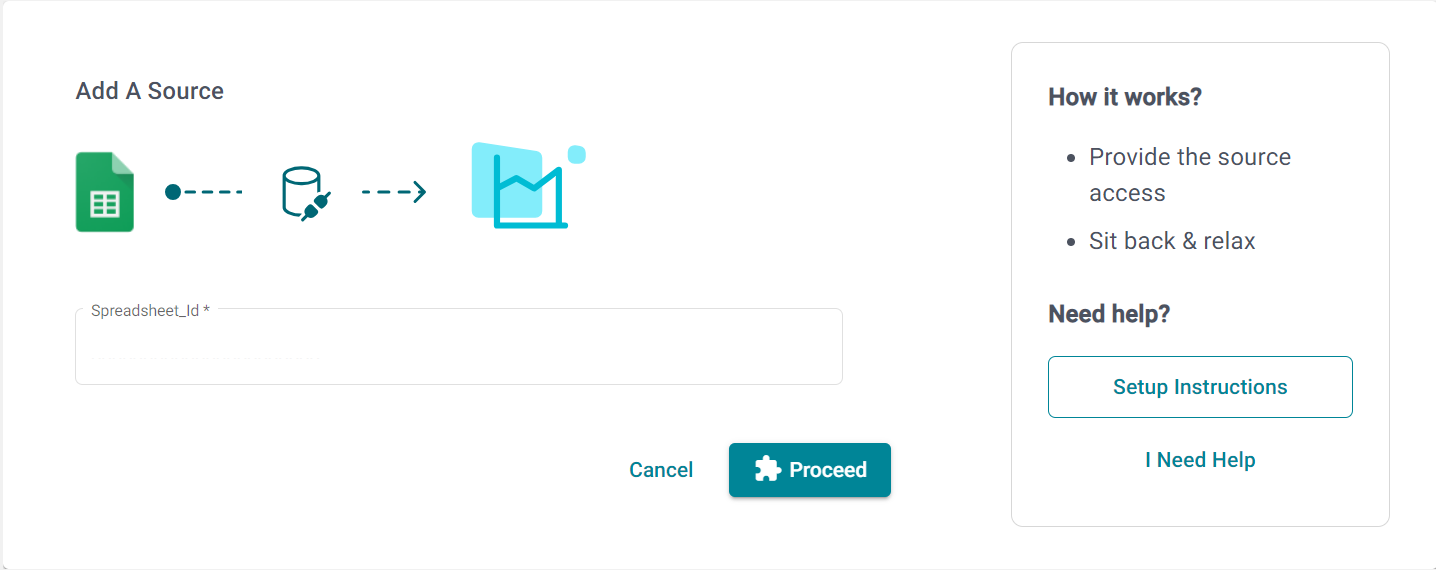
Click on Proceed to create your google sheet integration.
The spreadsheet ID can be found in the URL of your google sheet.