
Connecting Saras iQ to Gemini Using the IQ MCP Server
Use Saras iQ MCP to connect Gemini to your Saras iQ data and ask questions, analyze your business, and create reports or dashboards using your governed business data.
Connecting Saras iQ to Gemini Using the IQ MCP Server
Use Saras iQ MCP to connect Gemini to your Saras iQ data and ask questions, analyze your business, and create reports or dashboards using your governed business data.
Before you start, you need:
- An active Saras iQ account
- Access to Gemini
Adding iQ MCP to Gemini as a Custom Connector:
The steps below are to be performed by Gemini admins to add the custom iQ MCP connector to the Gemini workspace.
Step 1: Open Gemini Account Login and sign in with your Google account.
Step 2: Click on “Customize”, then navigate to the “Connectors” section.


Step 3: In the top-right corner, click the “Custom” button>> “Connect to an MCP Server” popup window will display.

Step 4: Configure the connector
In the pop-up window, fill in the following, then click Next:
-
Connection: select the Server URL option and paste
https://iqapi.sarasanalytics.com/mcp/v2 - Authentication (Additional Settings): Client ID & Client Secret (optional not mandatory)
- Click on Next
- Confirmation: tick the I understand and accept the security and privacy risks of connecting this custom app.

Then click Connect.
Step 5: Click on “Agree and Continue” to provide approval.


Step 6: You'll be taken to the Saras iQ login page >> Sign in using your iQ credentials.

Step 7: Click Allow Access

Step 8: Return to Gemini, where a dialog will display the list of tools provided by iQ. Review the available tools and click Connect to save the connector.
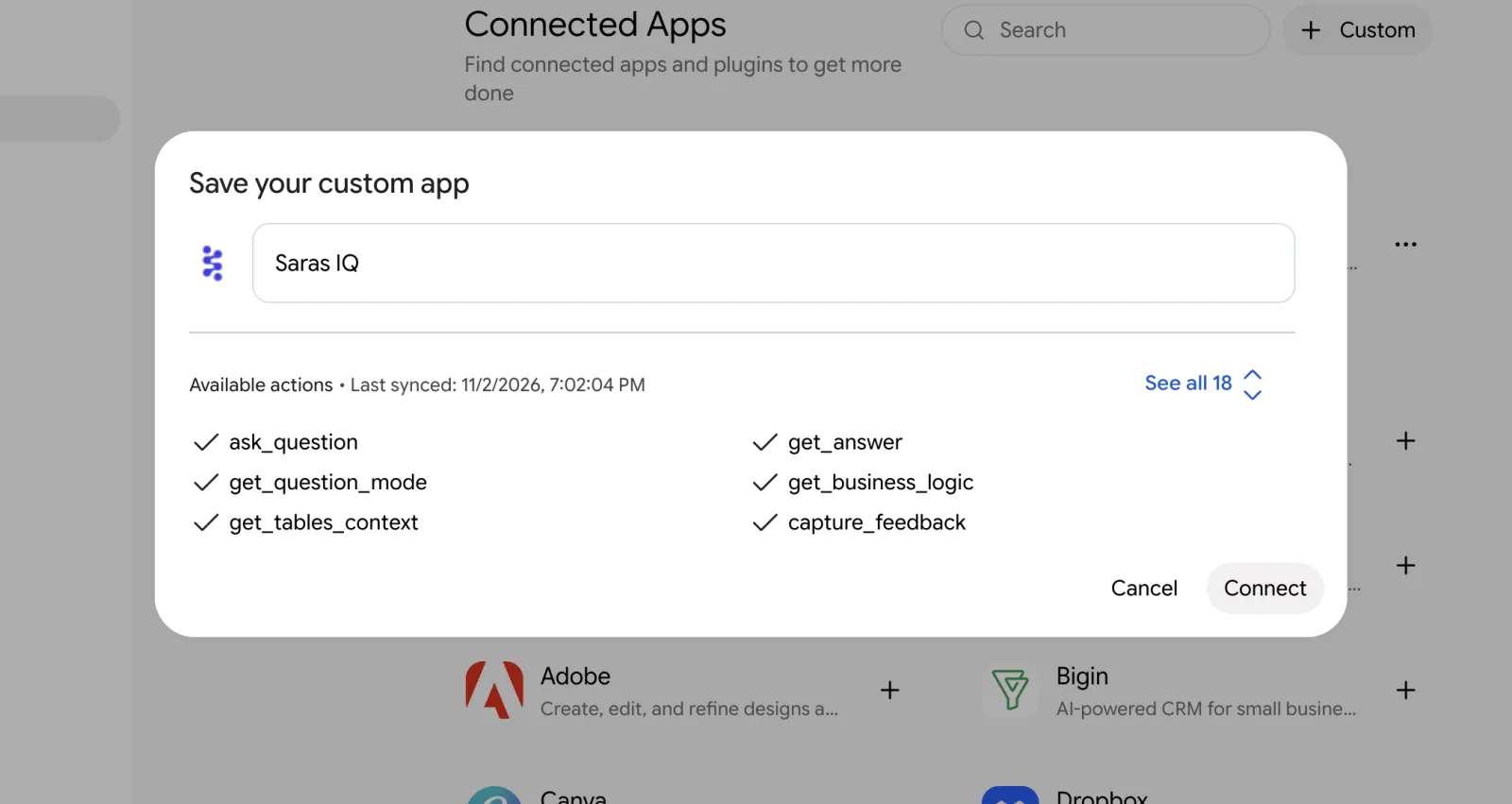
Step 9: When prompted, click Open Gemini.
You'll be taken back to Gemini and see a confirmation that the connection is complete.
You can use IQ in your conversations now.
Troubleshooting
If iQ MCP isn't working, try these steps in order:
- Quit Gemini completely and reopen it.
- Go to Customize → Custom Apps → MCP App and Disconnect the App.
-
Click Connect .

If you need help setting up, reach out to us over Slack or write us at support@sarasanalytics.com