
Connecting Saras iQ to SlackBot Using the IQ MCP Server
Use Saras iQ MCP to connect SlackBot to your Saras iQ data and ask questions, analyze your business, and create reports or dashboards using your governed business data.
Connecting Saras iQ to SlackBot Using the IQ MCP Server
Use Saras iQ MCP to connect SlackBot to your Saras iQ data and ask questions, analyze your business, and create reports or dashboards using your governed business data.
Before you start, you need:
- An active Saras iQ account
- Access to SlackBot & Slack Workspace.
- Install Slack Bot in your Slack Workspace by Slack Admin of your organization.
Adding iQ MCP to SlackBot as a Custom Connector:
The steps below are to be performed by Slack admins to add the custom iQ MCP connector to the Slack workspace.
Step 1: Open your “Slack Workspace” and navigate to the top-left corner. Then click the “Slack Bot” icon.
(Note: If the “Slack Bot” option is not visible, please contact your Slack Admin to have it added.)
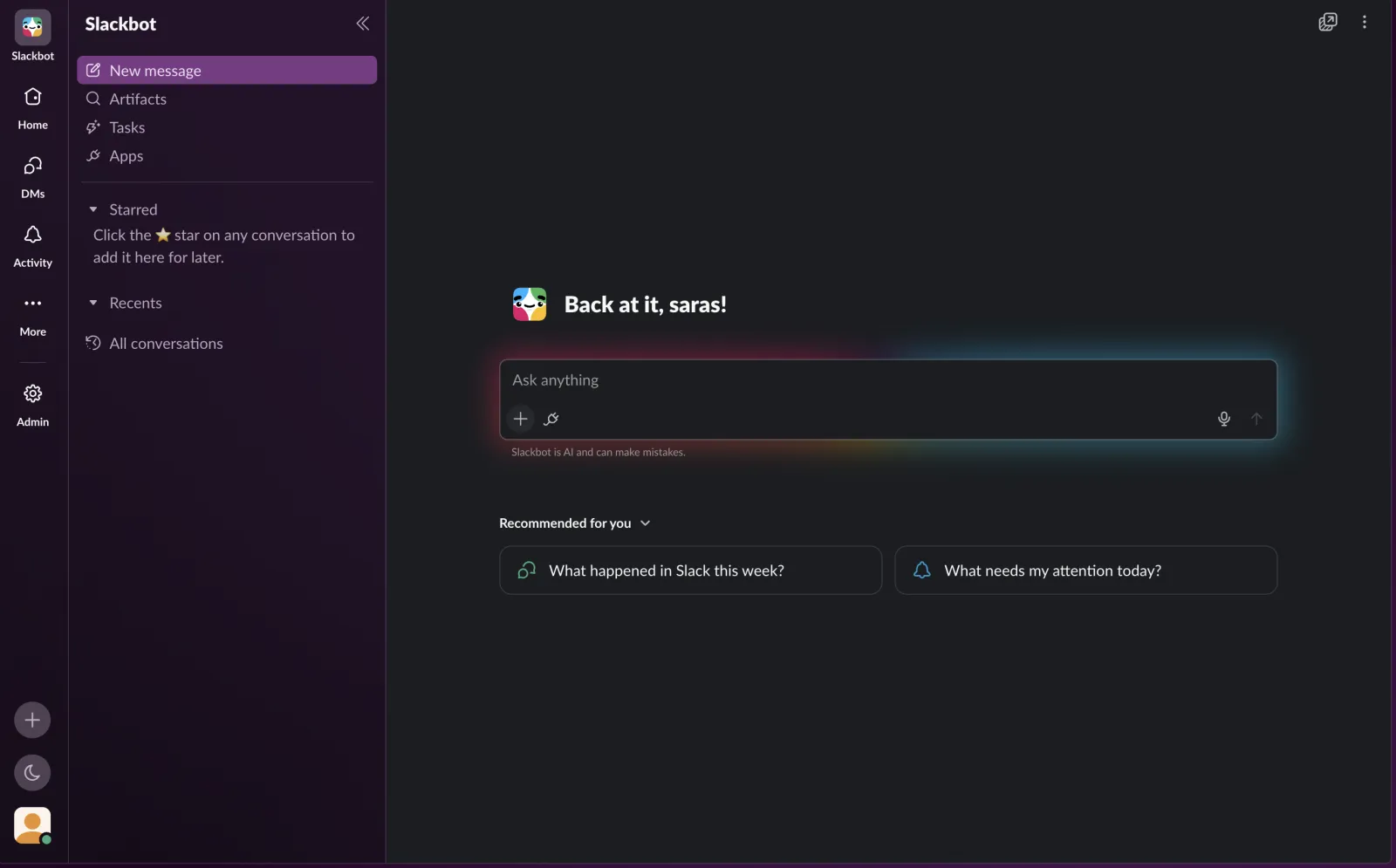
Step 2: Click the Connectors (Apps) icon below the message composer, then select “Add a custom MCP server” from the menu.
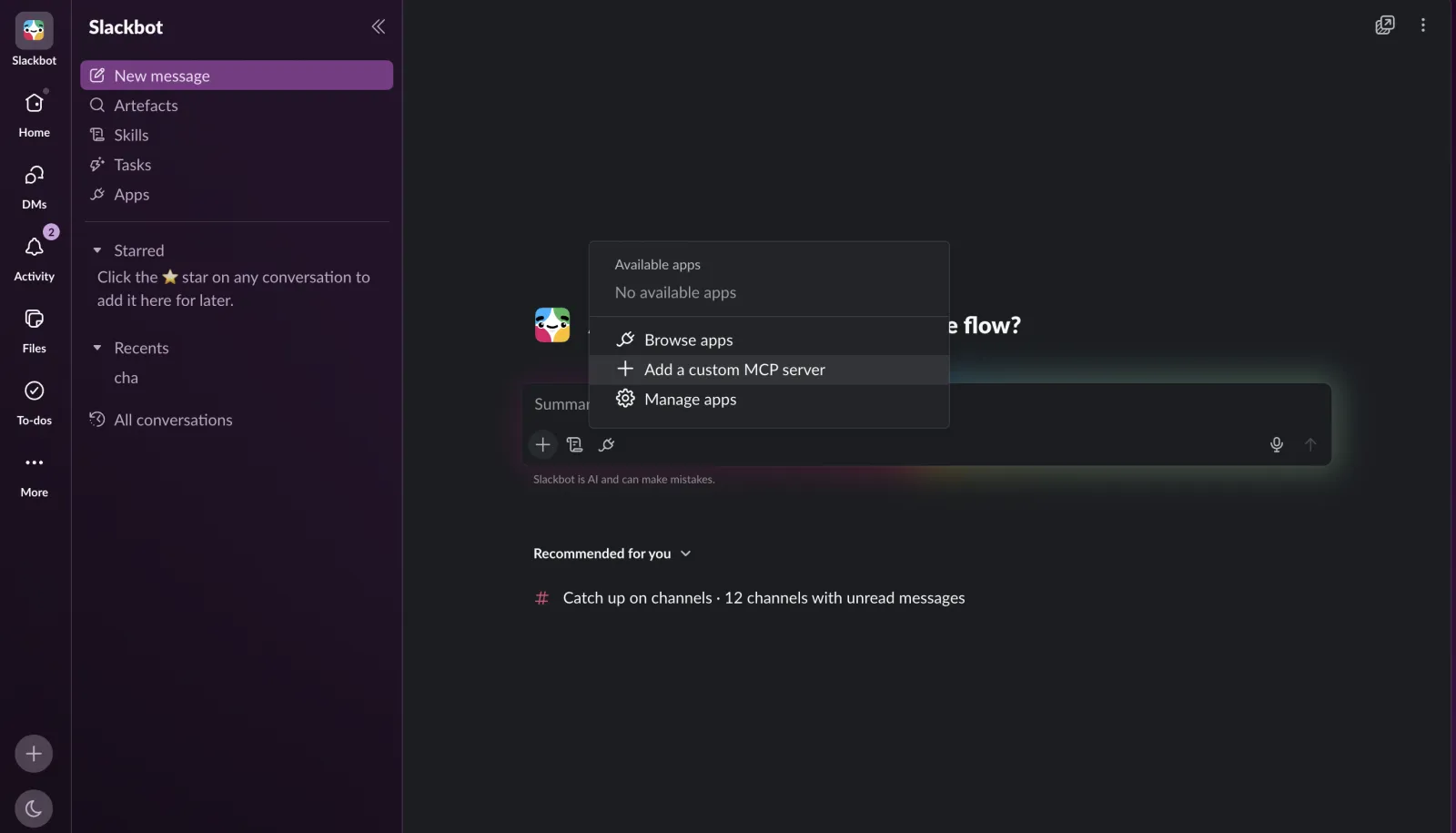
Step 3: Configure the connector
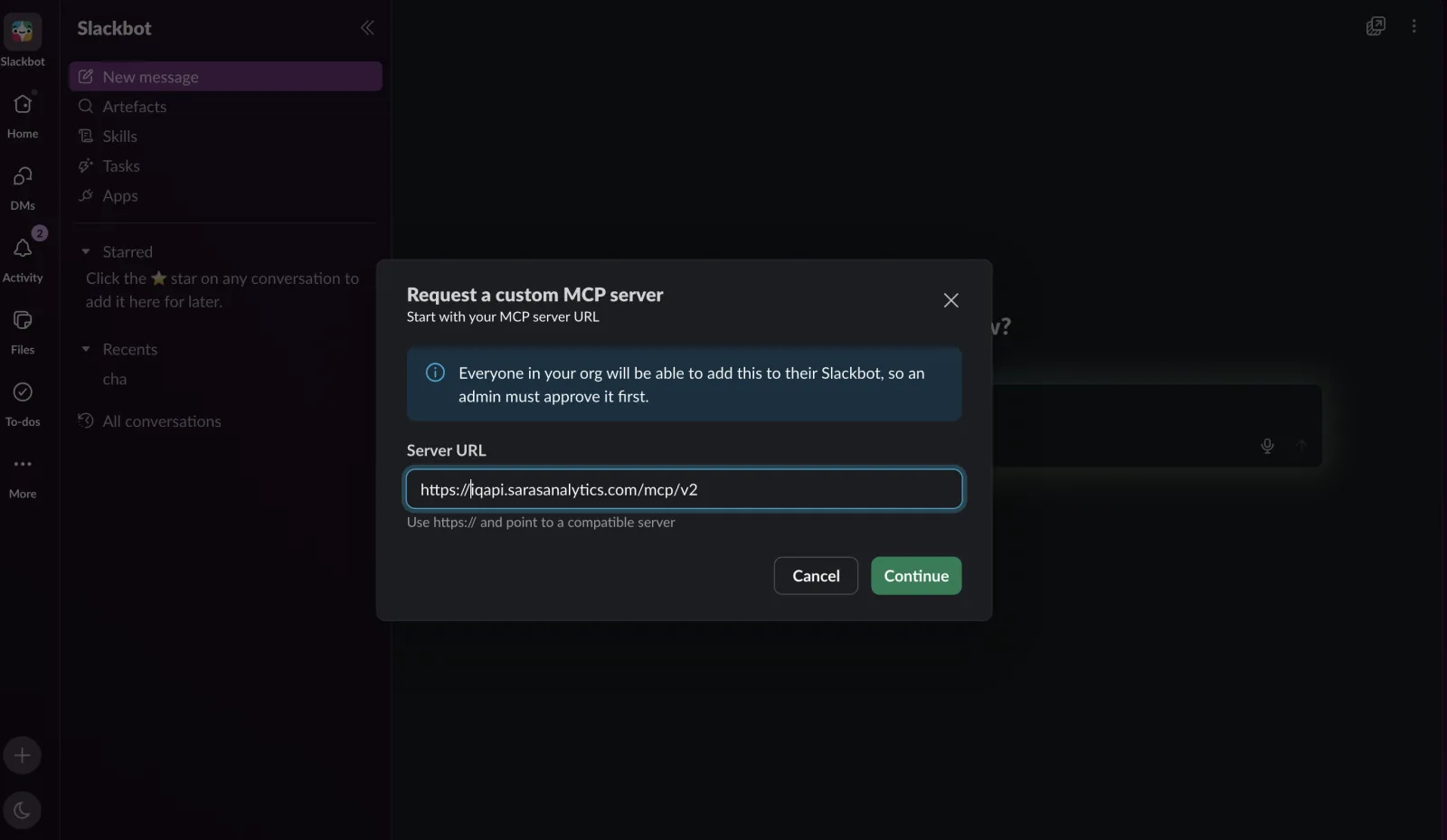
In the pop-up window, fill in the following, then click Continue:
- Connection: paste the server URL
https://iqapi.sarasanalytics.com/mcp/v2 -
Click on “Continue”
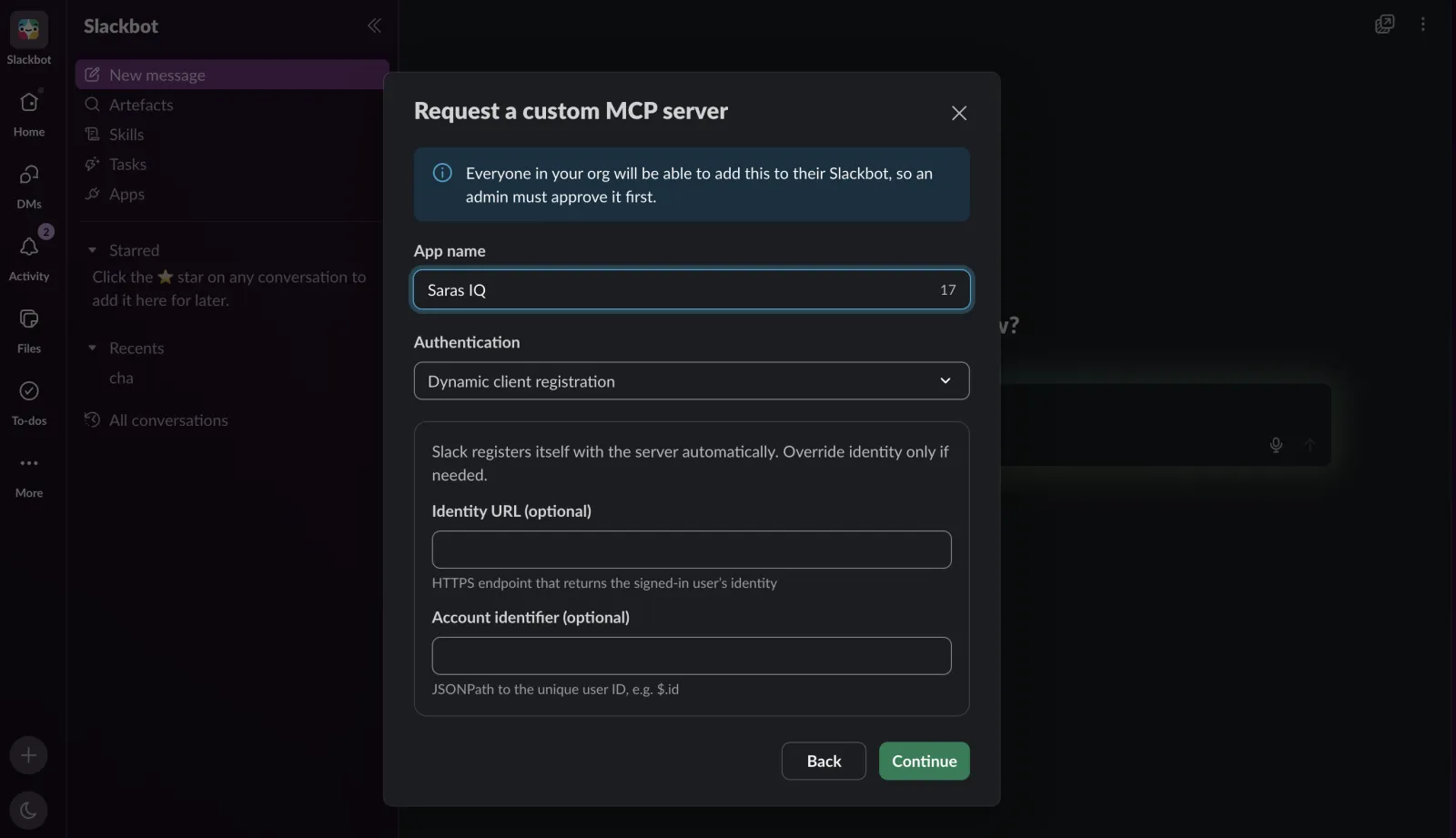
3.App Name: SarasIQ
Authentication: leave it set to Dynamic client registration. No change is needed.
Then click Continue.
Step 4: Click on “Connect” to add IQ as a custom MCP server.
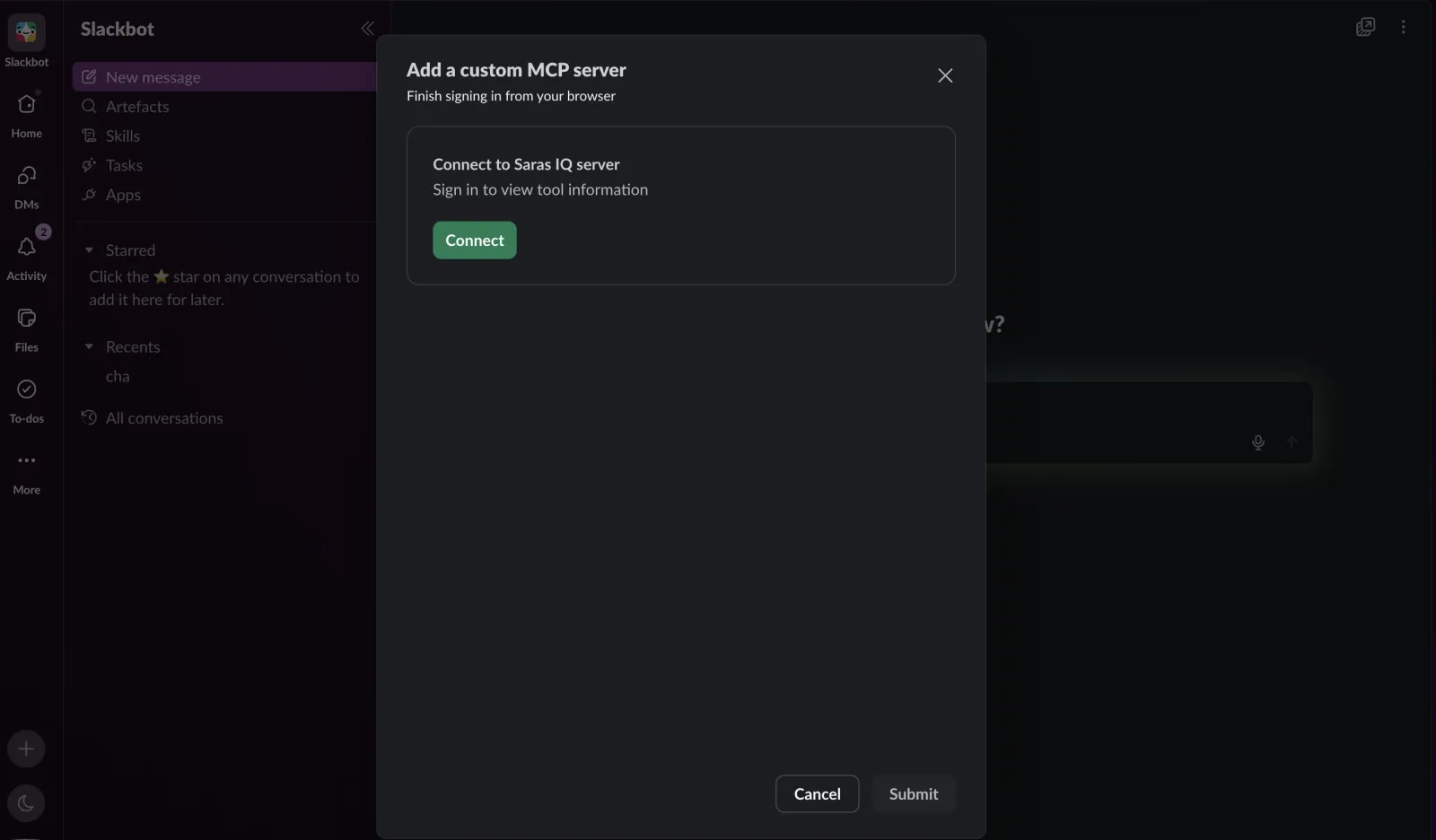
(N.B: If the Sign-in Window Is Blocked
Slack may display the message: “Your browser blocked the sign-in window. Allow pop-ups for Slack and try again.”
To resolve this, allow pop-ups for Slack in your browser and click Connect again. Alternatively, open Slack in your browser and repeat the connection steps.)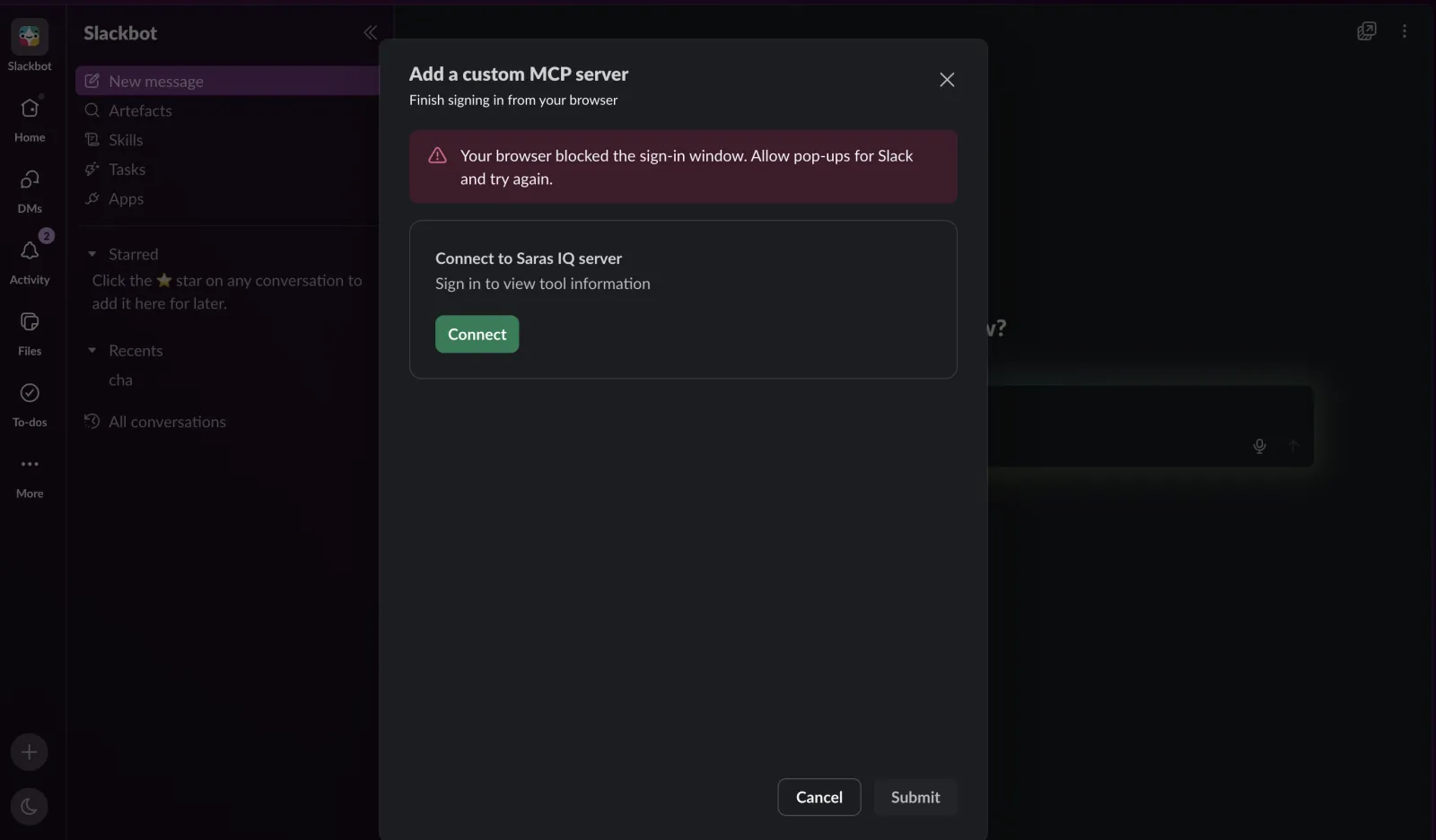
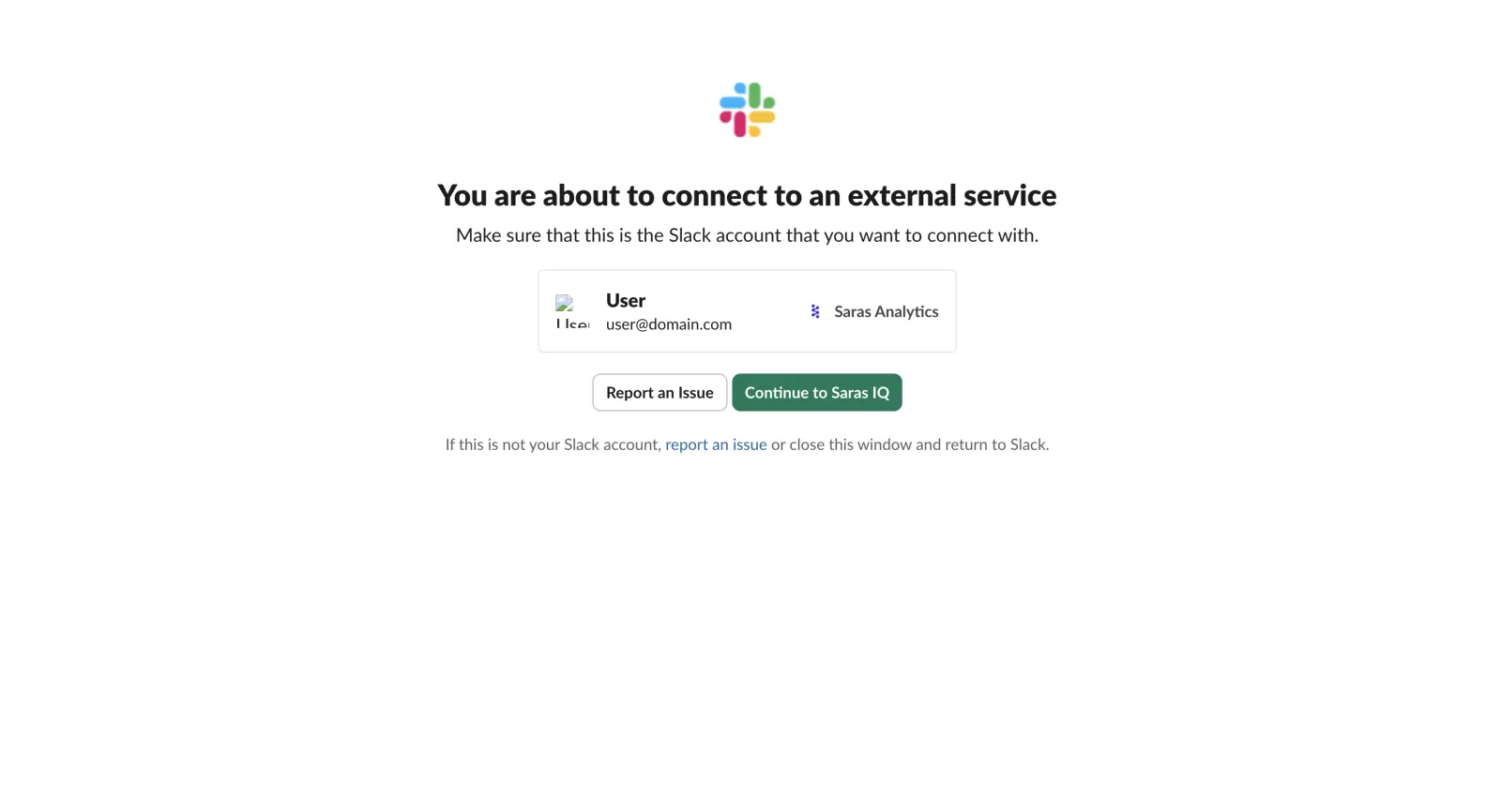
Step 5: Confirm Your Account: - Review your user and workspace details to ensure they are correct, then click “Continue to Saras iQ” to proceed.
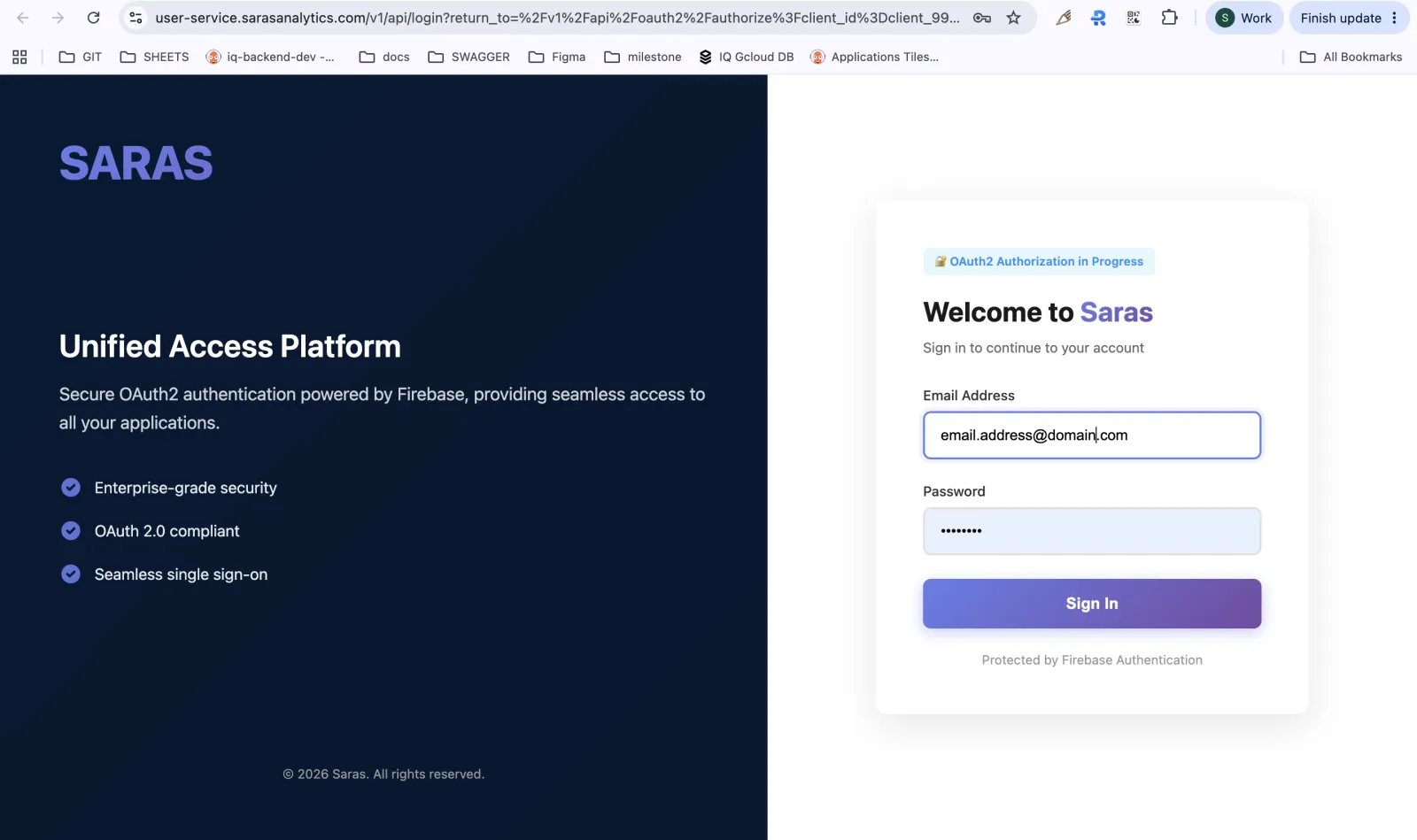
Step 6: Authorize Access: - Slack will open the Saras iQ sign-in page in your browser. Sign in using your Saras iQ credentials and grant the requested permissions. Once you see the prompt asking you to close the tab, close it and return to Slack.

Step 7: Review Tools for Saras IQ: -Return to Slack and review the tools requested by Saras iQ. Once you've reviewed them, click “Submit” to proceed.
N.B: If you are not a Slack Admin, your approval request will be sent to your Slack Admin for review. 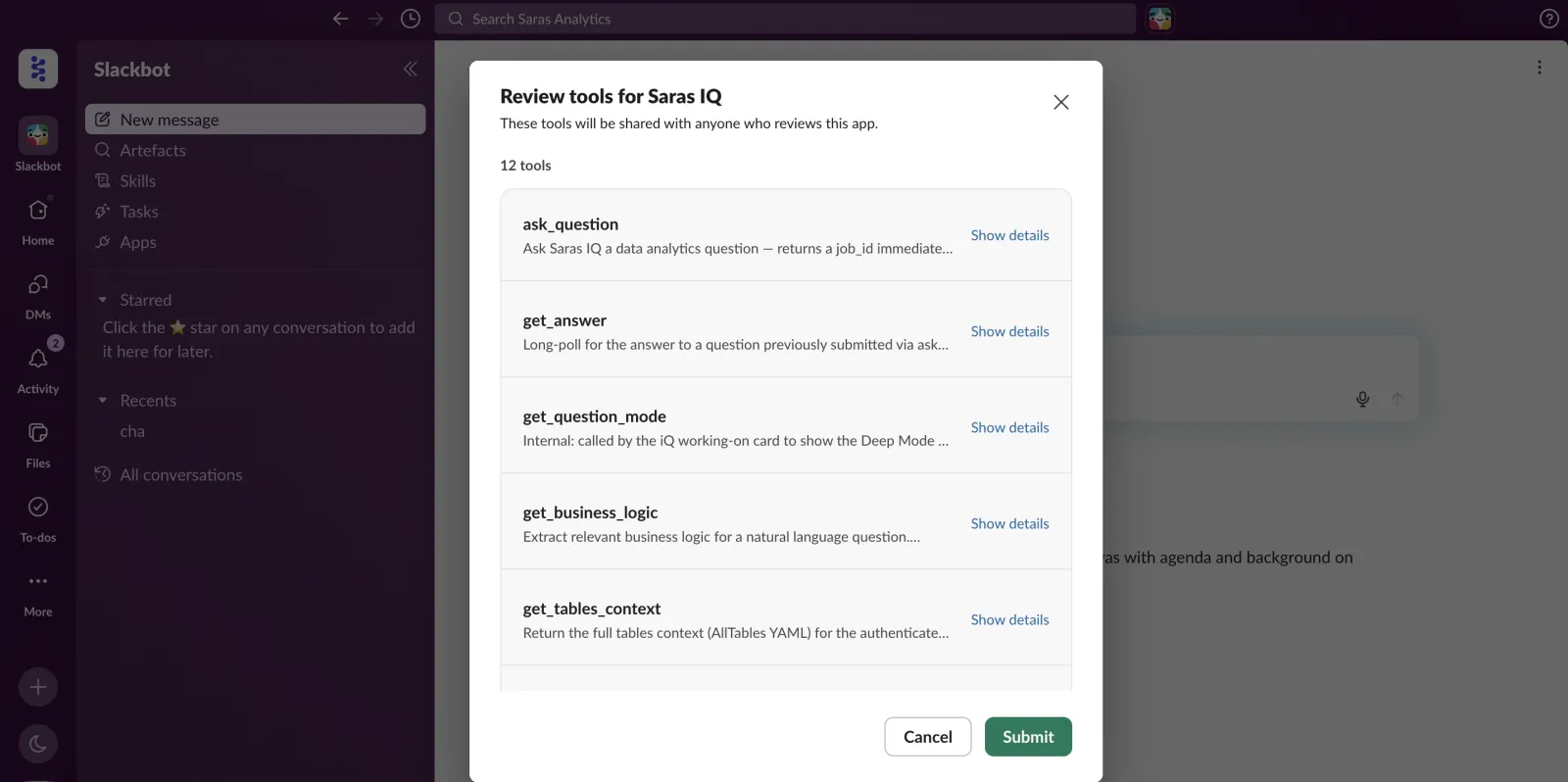
(a) If the Approval Request Cannot Be Submitted: -
Slack may display the message: “The admin approval request couldn't be submitted. Try again.”
This usually indicates that an approval request for these tools has already been sent to your Slack Admin and is still pending.Please check with your Slack Admin for the approval status before proceeding.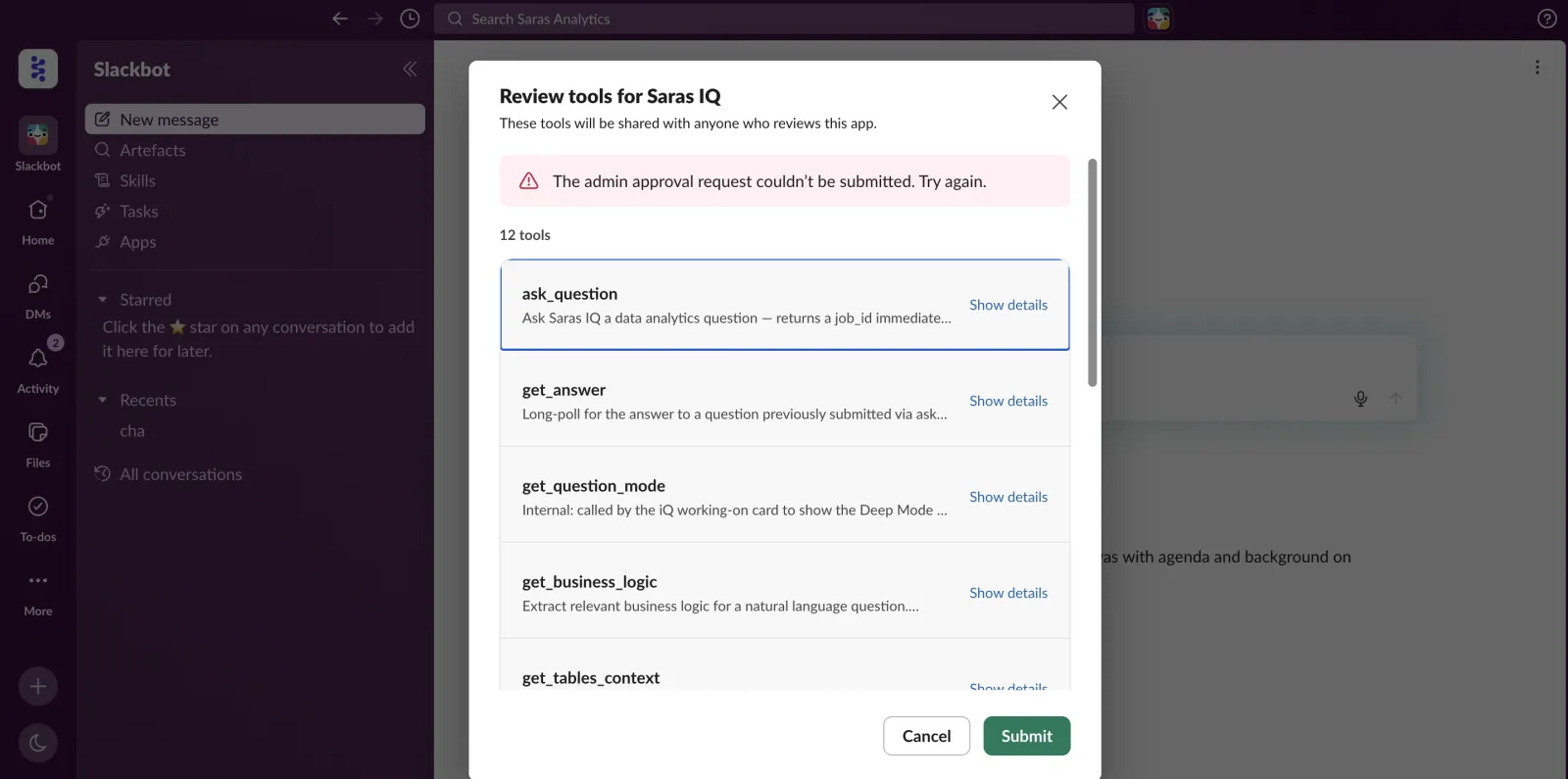
Step 8: When prompted, click Open SlackBot.
You'll be taken back to SlackBot and see a confirmation that the connection is complete.
You can use IQ in your conversations now.
Start using iQ in SlackBot
Open a SlackBot Chat conversation and start asking questions about your business data.
For example:
- Use iQ MCP, What were our sales last month?
- Show me our top-performing products, use iQ mcp.
-
Create a weekly business review dashboard.

Troubleshooting
If iQ MCP isn't working, try these steps in order:
- Quit SlackWorkSpace completely and reopen it.
- Go to Apps → Click on IQ → Click on Disconnect IQ.
-
Click Connect → Then Follow Authentication Process To Setup.

If you need help setting up, reach out to us over Slack or write us at support@sarasanalytics.com